
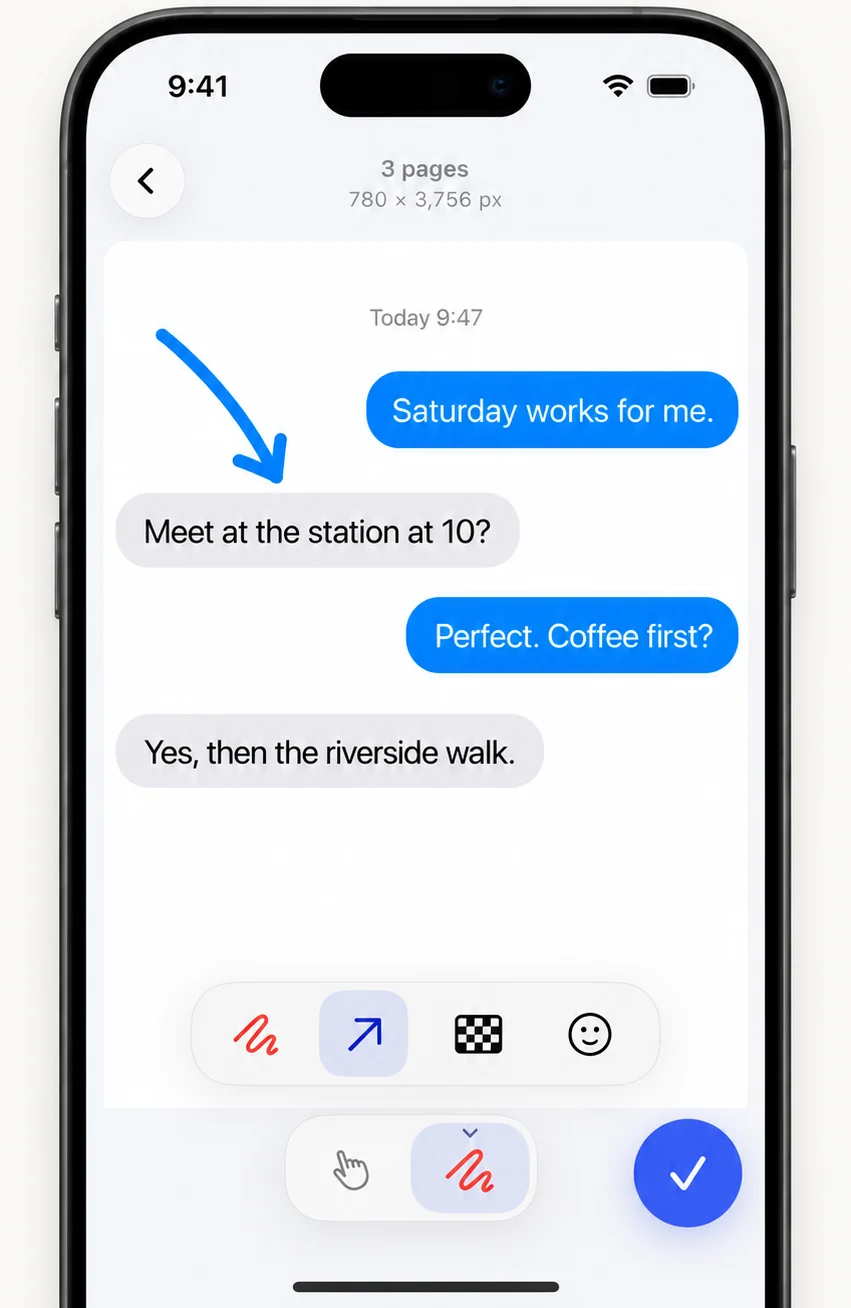
How to crop and edit a long screenshot
- Open the resultAfter stitching, the long screenshot opens in the editor.
- Fix the joinsTap a join to move it or cut it. Auto Trim switches between whole screenshots and the trimmed cut.
- Cut Out PartSize and move the band over the part you do not need, then cut.
- Mark upDraw with the pen, add arrows, hide details with mosaic or add stickers.
- ExportSave as PNG, JPG or PDF.
How do I remove the overlap in a long screenshot?
Auto Trim removes the repeated part of each screenshot so the result reads as one image. Turn it off to keep every screenshot whole.
How do I cut out the middle of a long screenshot?
Use Cut Out Part. It works on any image, not just stitches: size and move a band over the section to remove, then cut. Use it to drop an ad, a gap or a message you do not want to share.
Can I change marks later?
Yes. Marks are stored separately from the image. Move, resize, recolour or delete any mark, and they re-apply after you change a seam or layout.
Frequently asked questions
How do I crop a long screenshot on iPhone?
Open it in FullPage and use Cut Out Part to remove a section, or fix the joins and trim.
How do I remove the overlap in a screenshot?
FullPage removes overlap automatically when it stitches. Adjust any join by tapping it.
Can I hide private information?
Yes. Cover it with mosaic (Pro), a sticker or a pen stroke.
Last updated .