
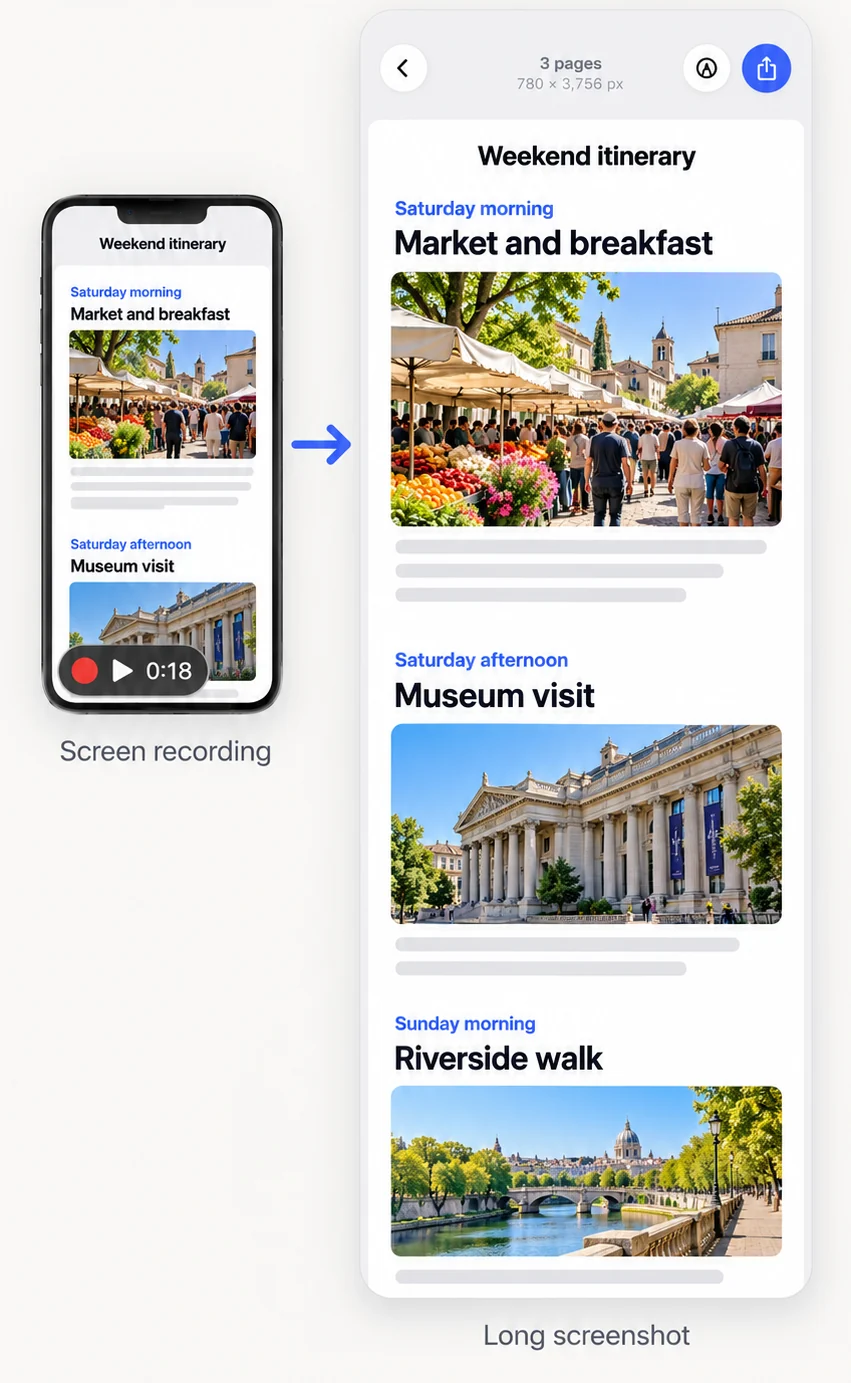
How to convert a screen recording into a long screenshot
- Record while you scrollUse Screen Recording in Control Center and scroll steadily through the content.
- Open the videoIn FullPage tap Videos, or select the video in Photos and share it to FullPage.
- Choose a range (long videos)For videos over 60 seconds, drag the ends of the filmstrip, or seek and tap Start Here.
- Review the resultCheck the joins, add exact frames in Advanced if something is missing, and trim.
- SaveExport as PNG, JPG or PDF.
How does video to long image work?
FullPage reads frames from the video at a fixed interval, every 0.5 seconds by default, or 1 or 2 seconds in Settings. It finds the scrolling stretches, matches the overlap between frames and joins them at the seam. When a join fails, it pulls extra frames from between the two points.
Can I pick the exact frames?
Yes. The advanced view shows a video preview with a thumbnail timeline. Play, step frame by frame, and tap Add Frame to add the exact frame you want. Selected frames stay in a strip below, and you can remove or reset them.
What if nothing scrolls?
When FullPage finds no scrolling, it captures whole frames at your chosen interval and opens them in the editor, instead of showing an error.
Frequently asked questions
Can I convert a video to a long image?
Yes, if the video is a screen recording of something scrolling. FullPage turns it into one long screenshot.
How long can the video be?
Up to 60 seconds are stitched automatically. For longer videos you choose a range of up to 60 seconds.
Which frame interval does it use?
0.5 seconds by default. You can choose 1 or 2 seconds in Settings.
Is the video uploaded anywhere?
No. Processing happens on your device.
Last updated .