How to take a scrolling screenshot on iPhone or iPad
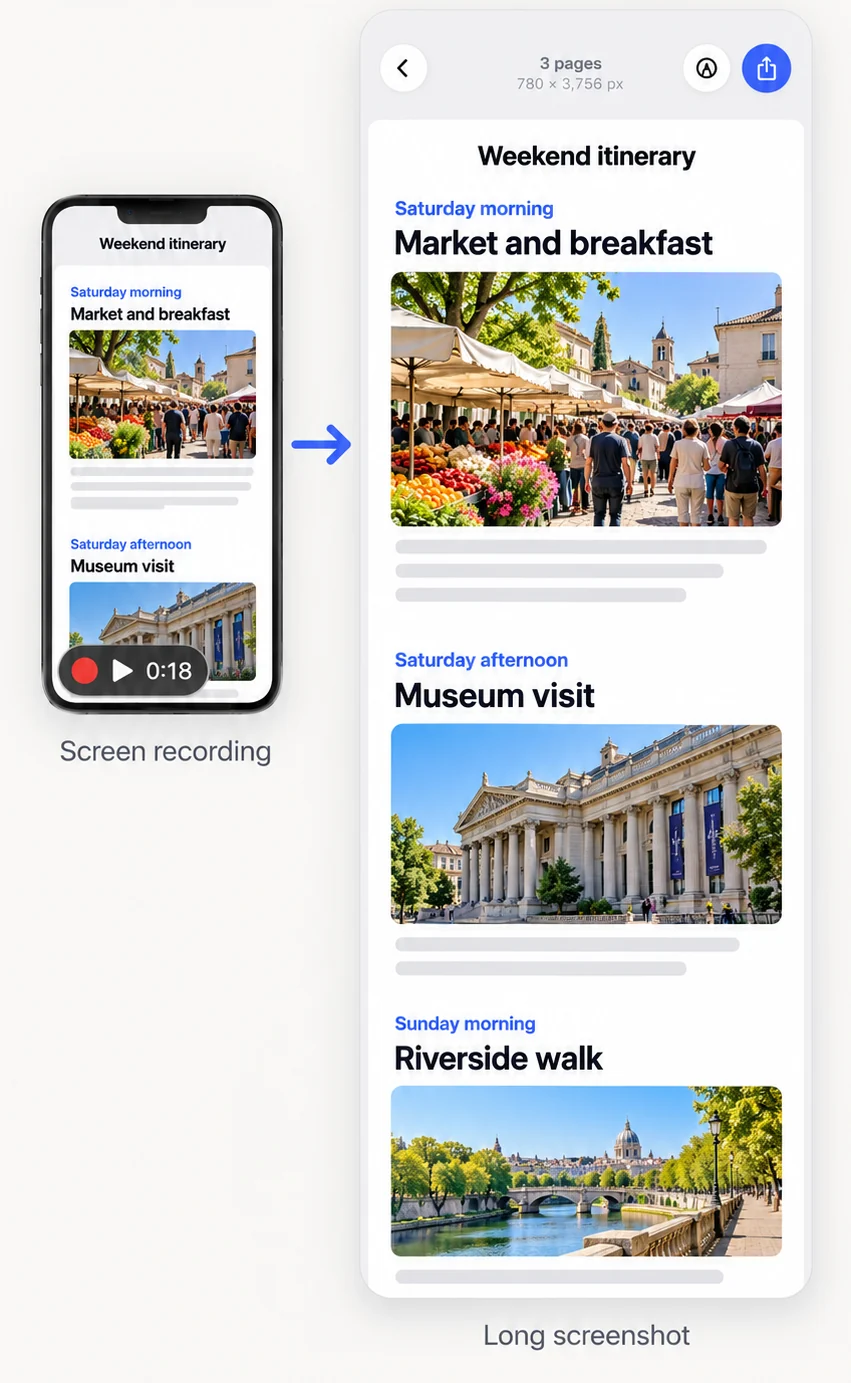
- Start a screen recordingAdd Screen Recording to Control Center, then tap it and start recording.
- Scroll steadilyScroll through the content at an even pace. Slow, smooth scrolling gives the cleanest result.
- Stop and open in FullPageStop recording, then open FullPage and tap Videos, or select the video in Photos and share it to FullPage.
- Pick a range if it is longVideos up to 60 seconds stitch automatically. Longer ones open a range picker so you choose which part to use.
- SaveExport as PNG, JPG or PDF.
Does iPhone have scroll capture like Android?
Not for apps. Android phones offer scroll capture (Samsung), scrolling screenshot (Pixel) or long screenshot (Xiaomi, Huawei, Oppo). On iPhone the closest built-in option is Safari’s Full Page PDF, which only works for web pages. FullPage brings a scrolling screenshot to any app.
Scrolling screenshot vs. screen recording
A screen recording is a video. A scrolling screenshot is one still image. FullPage converts the first into the second, so you can share, print or mark up a single picture instead of a clip.
What can you capture?
Anything that scrolls and that you can see on screen.
- Chats and message threads
- Email conversations and long notes
- Settings screens and order histories
- Documents, menus, itineraries and comment threads
No scrolling at all for web pages
If the content is a web page, you do not need to record anything. Share the link to FullPage for a full page capture with ads and pop-ups removed.
Frequently asked questions
How do I take a scrolling screenshot on iPhone?
Screen-record while you scroll, then open the video in FullPage. It stitches the frames into one long screenshot.
How long can the recording be?
Up to 60 seconds are stitched automatically. For longer recordings, you choose the range to use.
What if I scroll too fast?
FullPage can pull extra frames between two points when it cannot match them, and you can add exact frames by hand in the advanced editor.
Does it work in any app?
It works with anything you can screen-record. Some apps block screen recording for protected content.
Last updated .